Local IDs & permits
Configuring local ID, accreditations & permit requirements and expiry monitoring
Local IDs, permits and accreditations allow you to collect and monitor additional documentation required for specific countries, locations or roles.
You can create custom requirements, configure what staff must provide during registration and enable expiry notifications to help keep documentation up to date.
Accessing local ID and permit settings
To configure these requirements:
- Navigate to Settings > Staff registration > Manage the registration form > Edit.
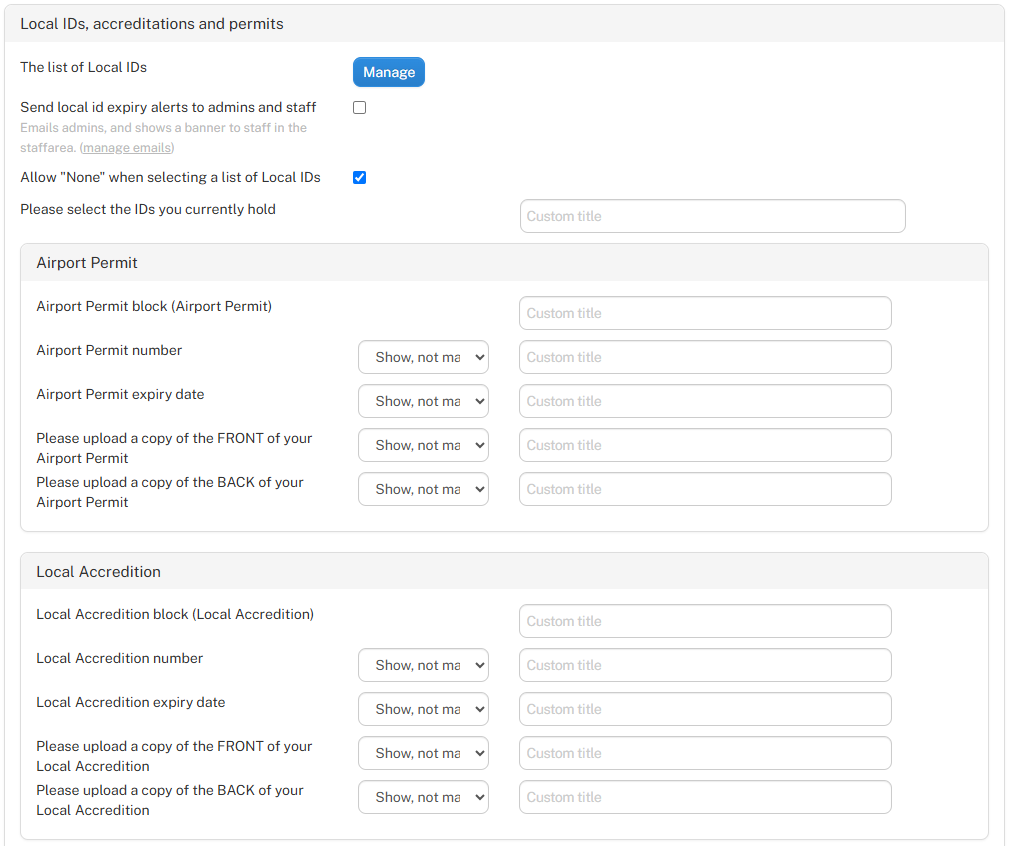
- Select Manage for the ID & Right to Work section, then scroll to Local IDs, accreditations and permits.
Adding and managing local IDs and permits
Click Manage next to The list of Local IDs to view your existing requirements or create new ones.

You can add and manage different types of documentation, such as Emirates IDs, airport permits, local accreditations or other organisation-specific requirements.
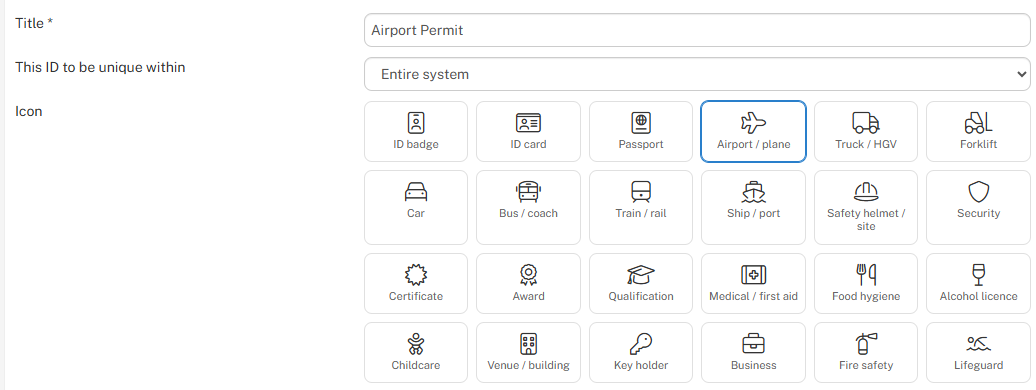
When creating or editing a requirement, you can configure:
- Title – Enter the name of the ID, permit or accreditation.
- This ID to be unique within – Select the applicable division (if applicable).
- Icon – Choose an icon that represents the document type.
Configuring registration requirements
Once a local ID or permit has been added, return to Local IDs, accreditations and permits to configure the information collected during staff registration.
For each requirement, you can:
- Show, mandatory – Require staff to complete the field.
- Show, not mandatory – Display the field but make it optional.
- Hide – Remove the field from the registration form.
- Custom title – Change the wording displayed to staff.
Available fields include the document number, expiry date and uploads for the front and back of the document.
You can also enable *Allow "None" when selecting a list of Local IDs, allowing staff to indicate that they do not hold any of the listed documents.
Configuring expiry monitoring
Enable Send local ID expiry alerts to admins and staff to notify administrators by email and display expiry notifications to workers within the staff area.
Use Manage emails to configure the notification recipients.
This helps administrators monitor expiring local IDs, permits and accreditations and follow up with workers when updated documentation is required.
Collecting local IDs and permits during staff registration
During staff registration, workers can provide details of any local IDs, permits or accreditations they hold within the ID & Right to Work section.
The information requested depends on the requirements configured by your organisation.
Providing local ID and permit information
Workers are presented with a list of available IDs, permits and accreditations and can select those they currently hold.
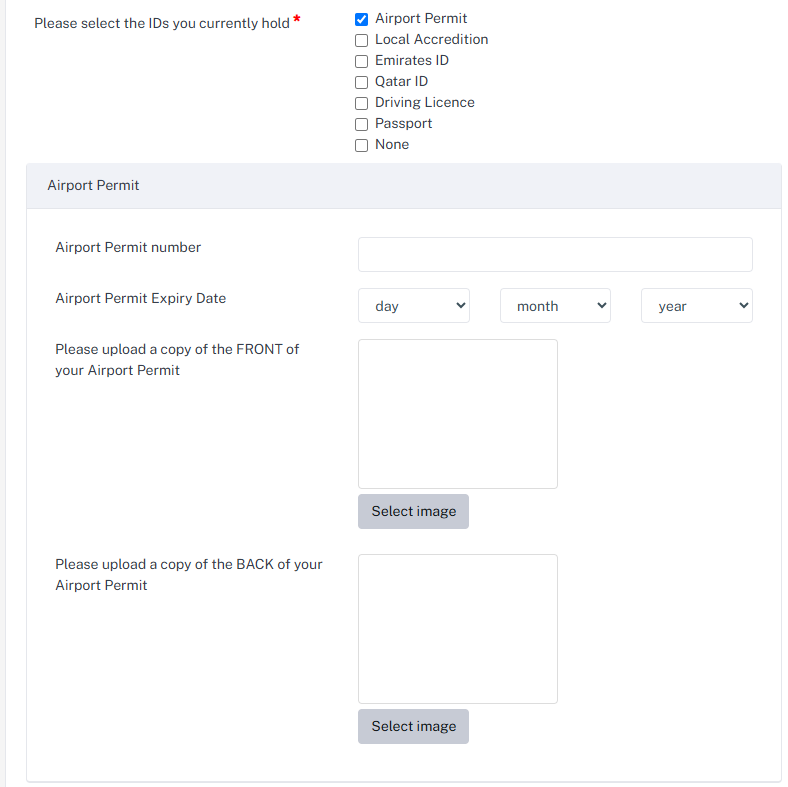
Once selected, the relevant fields are displayed for each document, which may include:
- Document number – Enter the ID, permit or accreditation number.
- Expiry date – Provide the document's expiry date, where applicable.
- Front image – Upload a copy of the front of the document.
- Back image – Upload a copy of the back of the document.
Workers can select multiple documents, with separate fields displayed for each selection.
Where enabled, workers can also select None if they do not hold any of the listed documents.
Fields may be mandatory or optional depending on your organisation's registration settings.
Once submitted, the information is stored within the worker's staff profile for review and approval.
Viewing and managing local IDs and permits in staff profiles
Local IDs, permits and accreditations can be viewed, updated and approved directly within individual staff profiles, allowing administrators to manage supporting documents and maintain a record of verification activity.
Accessing local IDs and permits
To view or manage a worker's documents:
- Open the relevant staff profile.
- Navigate to ID & Right to Work and locate Local IDs, accreditations and permits.
Viewing and approving documents
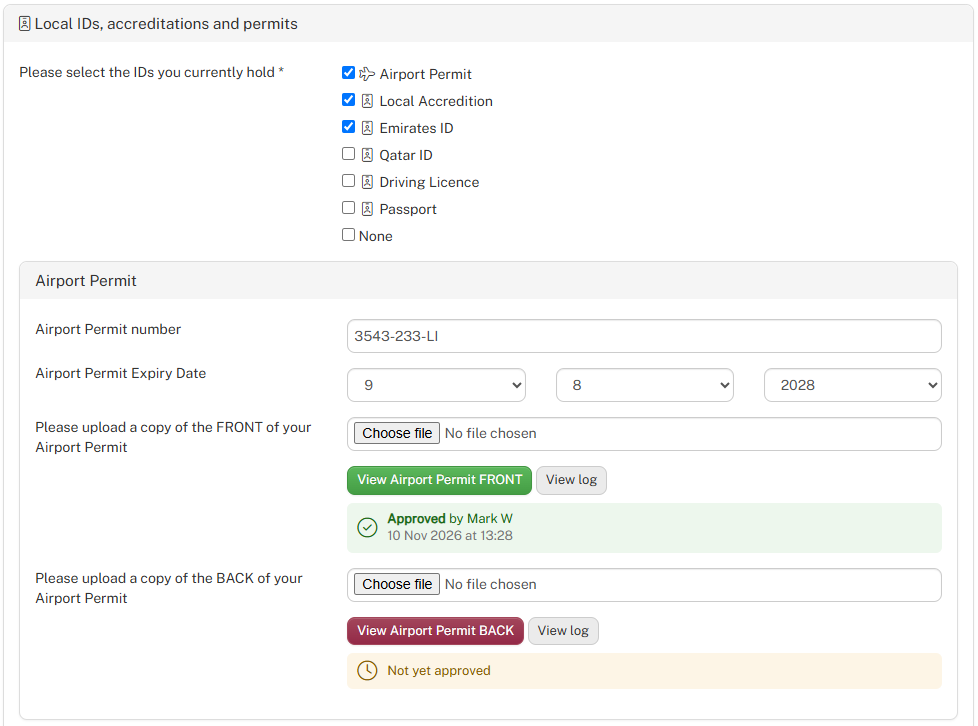
Administrators can select the relevant ID, permit or accreditation to view its recorded information, including:
- Document number – View or update the recorded reference number.
- Expiry date – Review or update the document's expiry date.
- Document images – View uploaded front and back images, where applicable.
- Approval status – See whether each uploaded document has been approved or is awaiting approval.
Documents can be reviewed and approved individually, with the approval status displayed alongside each upload.
Viewing document history
Select View log alongside a document to access its verification history.
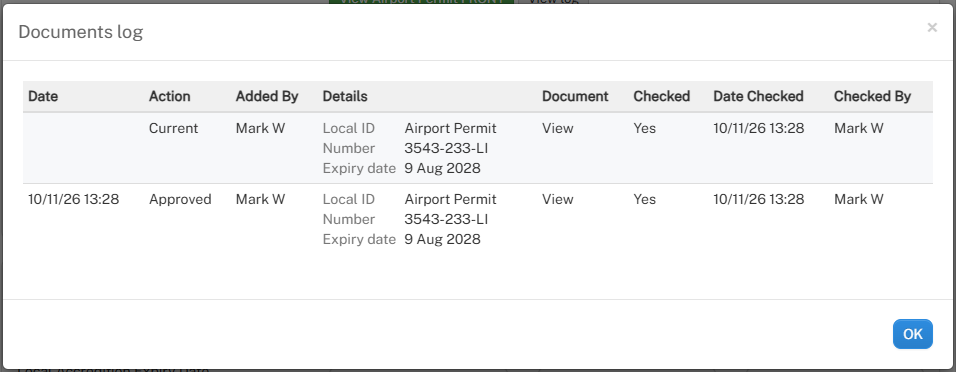
The log provides an audit trail of document activity, including:
- Date and time of the action.
- Action performed, such as approval.
- Administrator responsible.
- Document details and expiry date.
- Verification status and the person who checked the document.
This makes it easy to review previous actions and maintain visibility over document approvals and changes.